Set Up the Theme
Click-by-click theme editor setup for the Sophi Shopify app — work on a theme copy, create the chat page and its template, fill in every Sophi assistant setting, and place the banner, product box, search recovery and cart blocks.
Everything on this page happens in the Shopify admin and its theme editor. Do the steps in this order: the chat page has to exist before the embed can point to it.
| # | Step | Where |
|---|---|---|
| 1 | Work on a copy of your theme | Online Store → Themes |
| 2 | Create the chat page | Online Store → Pages |
| 3 | Give it a chat template | Theme editor |
| 4 | Switch on the Sophi assistant embed | Theme editor → App embeds |
| 5 | Place the blocks | Theme editor → home, product, search, cart templates |
| 6 | Add a menu link (optional) | Content → Menus |
1. Work on a copy of your theme
Never set up Sophi on your live theme. Go to Online Store → Themes, open the ⋯ menu of your current theme and choose Duplicate. The copy appears under Draft themes; select Edit theme on the copy. Shoppers see nothing until you publish it.
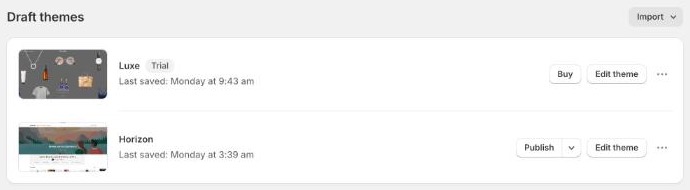
Online Store → Themes → Draft themes: after Duplicate, your copy is listed here with its own Edit theme and ⋯ menu.
2. Create the chat page
The full-page chat lives on a normal Shopify page. Go to Online Store → Pages → Add page:
1 Title: the name shoppers see, e.g. Sophi Asistan or your assistant's
name. Leave the content empty. 2 Visibility: Visible. 3 Theme
template: leave Default page for now — the sophi template appears here only
after you publish the theme copy (see below). Save.
The embed's Chat page setting only lists visible pages, so a hidden page can't be chosen. Making the page visible doesn't add it to any menu: until you link to it (step 6). It can still be found through your store's search and sitemap, and it stays an empty page until you publish the theme copy, so do the theme steps and publish without a long gap.
3. Give it a chat template
In the theme copy's editor, use the template picker at the top:
1 Template picker → Pages → Create template, name it sophi, based on Default page. 2 Hide the theme's Page section (the eye icon), so the page's title and empty content don't show above the chat. 3 Add section → Apps → Sophi chat page. Then Save.
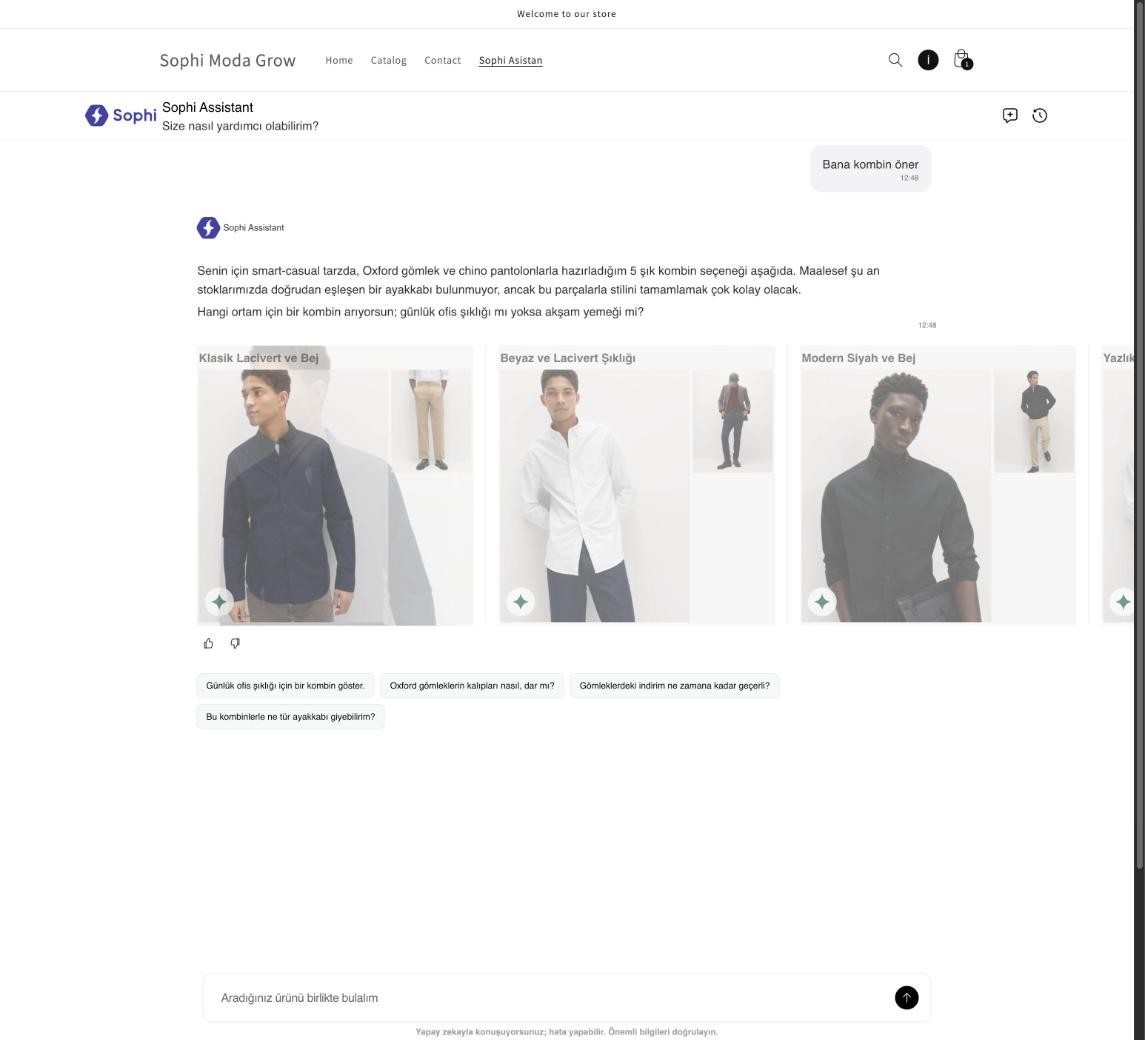
The chat page on the storefront after a banner chip: the store's own header, the chat below it, the question already answered.
The chat fills the screen under your store header. The block takes no settings: the look of the chat itself is set up by Sophi (details).
A page's Theme template list only shows the published theme's templates. So
you assign sophi to the page in Go live, right
after publishing. Until then the chat page still works when you preview the copy:
if a page has no Sophi chat page block, the app adds the chat at the end of the
page's main content.
4. Switch on the Sophi assistant embed
In the editor's left bar, open App embeds (the third icon):
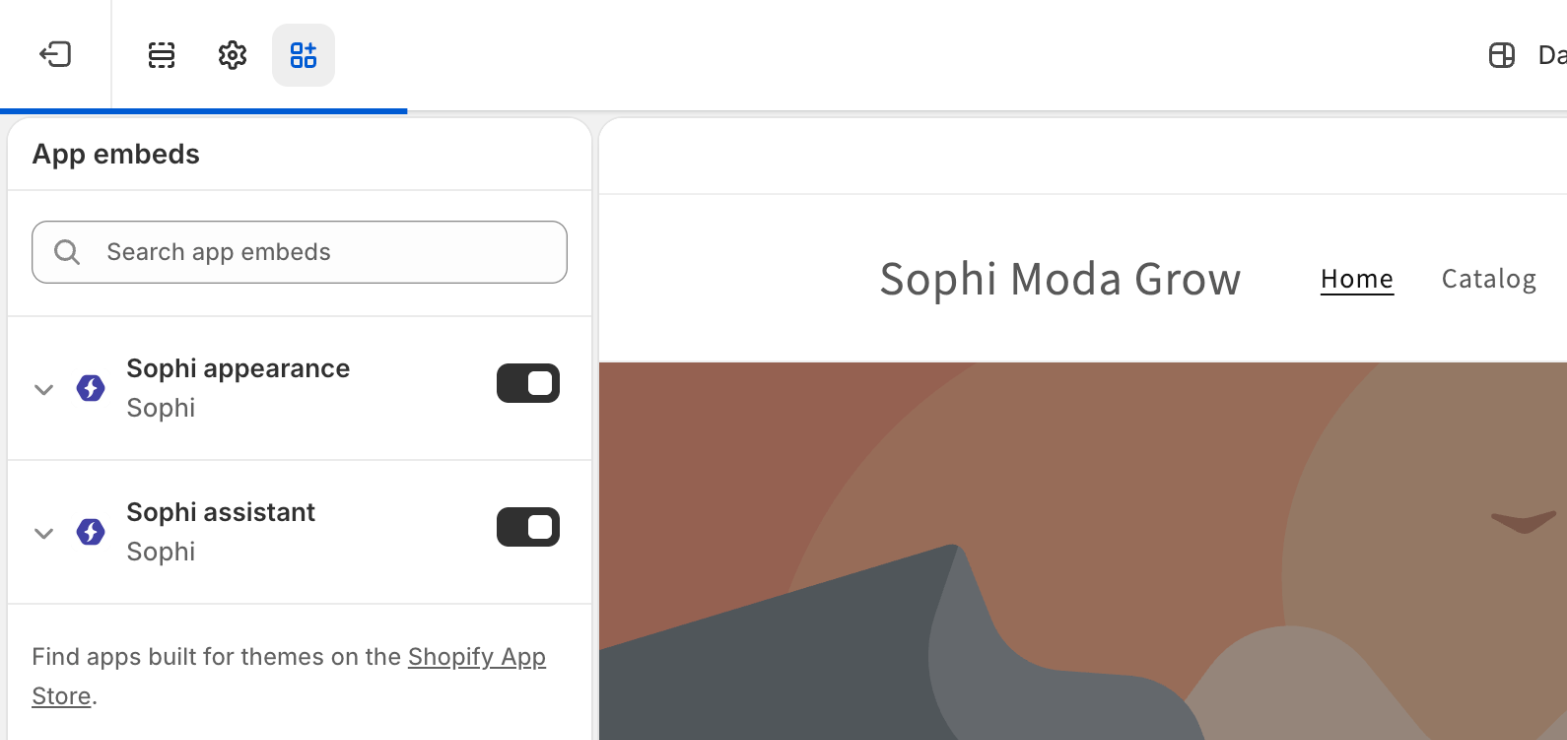
The App embeds panel (third icon in the left bar) with both Sophi embeds switched on. Switch on Sophi assistant — required, it loads the assistant on every page. Sophi appearance is optional and matches the blocks to your brand (Match your brand).
Then expand Sophi assistant and fill in its settings:
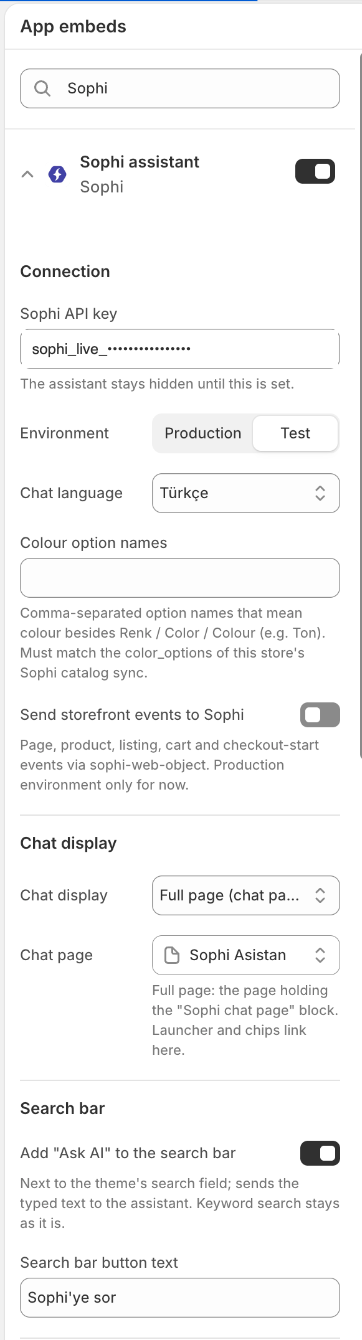
The Sophi assistant settings, in the same order as the tables below:
- Sophi API key — paste the key Sophi gave you (masked here).
- Environment — Production. Sophi's demo store in this picture runs on Test; yours doesn't.
- Chat language — the assistant's interface language.
- Send storefront events to Sophi — switch it on (it's off in the demo).
- Chat display — Full page, and Chat page — the page from step 2.
- Search bar — the Ask AI button and its text.
Further down: launcher, panel and messages.
The defaults are in Turkish. Change every text to your store's language.
Send storefront events to Sophi is off by default. Switch it on, or Sophi gets no page, product and cart events — no analytics, and no record of which chats led to carts and orders. (Purchases come from the web pixel either way.)
Connection
| Setting | Default | What to enter |
|---|---|---|
| Sophi API key | empty | Your API key from Sophi. The assistant stays hidden until this is set. |
| Environment | Production | Production for your store. Test connects to Sophi's test environment; use it only if Sophi asks you to. |
| Chat language | Türkçe | Türkçe, English or Português: the assistant's interface language. |
| Colour option names | empty | Extra option names that mean colour, comma-separated, e.g. Ton. Renk, Color and Colour are always recognised. Must match what you sent Sophi. |
| Send storefront events to Sophi | off | Switch on. Sends page, product, listing, cart and checkout-start events, for analytics and better recommendations (details). Works with Production only. |
Chat display
| Setting | Default | What to enter |
|---|---|---|
| Chat display | Full page | Full page: every entry point opens the chat page, under your store header. Side panel: the chat slides in over the current page. |
| Chat page | empty | The page from step 2. Required for Full page; the launcher and the chips link here. |
Search bar
| Setting | Default | What to enter |
|---|---|---|
| Add "Ask AI" to the search bar | on | Adds a button next to every search field in the theme. It sends what the shopper typed to the assistant; normal search keeps working. |
| Search bar button text | Sophi'ye sor | Short, e.g. Ask AI or Ask our assistant. |

The button the app adds next to the theme's search field (here with the Square corners from Sophi appearance).
Launcher and panel
The launcher is the floating button in the corner of every page.
| Setting | Default | What to enter |
|---|---|---|
| Show floating launcher button | on | Off if you only want the blocks and the menu link. |
| Launcher text | Sohbete Başla | e.g. Chat with us, or your assistant's name. |
| Launcher distance from bottom | 24 px | Raise it if it covers another floating button (chat, cookie, back-to-top). |
| Panel title | Sophi | Side panel only: the title above the chat. |
| Side | Right | Which side the launcher sits on (both modes), and the side panel opens from. |
| Panel width | 420 px | Side panel only, 360–600 px. On phones the panel is always full width. |
| Launcher colour | #111827 | Your brand colour. |
| Launcher text colour | #ffffff | A colour that reads on the launcher colour. |
Messages
| Setting | Default | What to enter |
|---|---|---|
| After chat add-to-cart | Automatic | Automatic refreshes your theme's cart (drawer, pop-up, cart count) — works with Dawn- and Horizon-family themes. If your cart icon doesn't update after the chat adds a product, choose Open the cart page or Reload the page. |
| Added to cart | Ürün sepete eklendi. | Short confirmation shown at the bottom of the screen. |
| Size missing | Lütfen önce bir beden seçin. | Shown when a product with options is added without one chosen. If you don't sell sizes, word it generally, e.g. Please choose an option first. |
| Add to cart failed | Ürün sepete eklenemedi. | e.g. Couldn't add to cart, please try again. |
| Close button label | Kapat | Read out by screen readers on the side panel's close button. |
Select Save.
5. Place the blocks
Blocks are the entry points inside your pages. Each one is optional; together they meet shoppers at every step of the visit. The Placement Guide explains why each one works.
| Block | Template | How to add it | Placement |
|---|---|---|---|
| Sophi banner | Home page (or any) | Add section → Apps → Sophi banner | 04 · Homepage |
| Sophi product box | Products → Default product | In Product information: Add block → Apps → Sophi product box; drag it where you want it — above the title (as in the demo) or under the buy buttons | 05 · Product page |
| Sophi search recovery | Search | Add section → Apps → Sophi search recovery | 02 · Search recovery |
| Sophi cart questions | Cart | Add section → Apps → Sophi cart questions | 08 · Checkout |
Switch template with the picker at the top of the editor. For example, the product box:
Template picker → Products: Default product. 1 In Product information, Add block. 2 Under Apps, Sophi product box. Drag it into place — above the title or below the buy buttons — and Save.
Every block has a Background and Text colour, and question chips. A chip opens the chat and asks its text, so the shopper starts with an answer instead of an empty chat. Leave a chip empty to hide it.
Write chips as the shopper would ask them, and only ask what Sophi can answer from your catalog: products, use, materials, ingredients, sizes, combinations, budget, gifts. Questions about delivery times or returns are answered only if you've given Sophi that information; otherwise leave those chips out.
Sophi banner
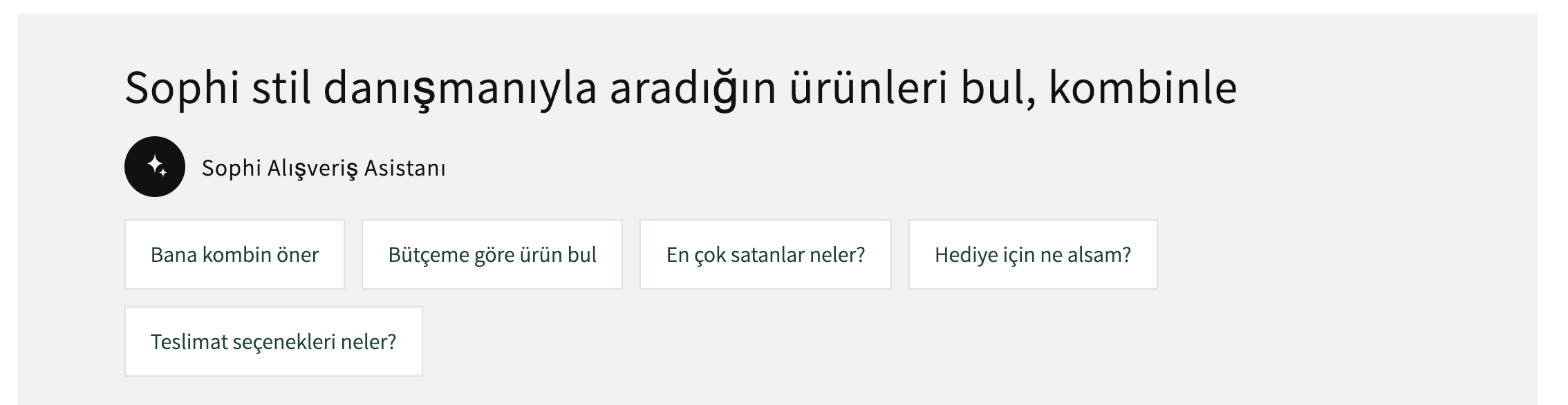
| Setting | Default |
|---|---|
| Heading | Sophi stil danışmanıyla aradığın ürünleri bul, kombinle |
| Assistant name | Sophi Alışveriş Asistanı |
| Chip 1–6 | Bana kombin öner · Bütçeme göre ürün bul · En çok satanlar neler? · Hediye için ne alsam? · Teslimat seçenekleri neler? · (empty) |
| Background / Text | #f2f2f2 / #111111 |
Sophi product box
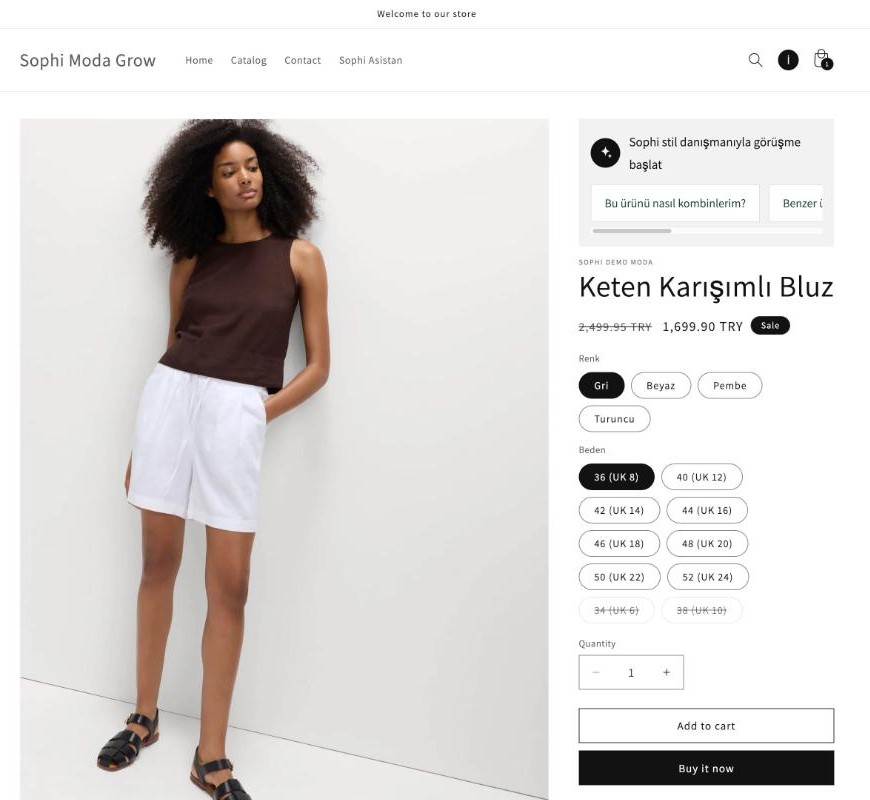
The title starts a chat about the product on screen, in the colour the shopper has selected. The chips ask about it.
| Setting | Default |
|---|---|
| Title | Sophi stil danışmanıyla görüşme başlat |
| Chip 1–4 | Bu ürünü nasıl kombinlerim? · Benzer ürünleri bul · Ürünün kumaşı ve bakımı nasıl? · Hangi beden bana uyar? |
| Background / Text | #f2f2f2 / #111111 |
Sophi search recovery

Shown on the search results page when a search finds few or no products: the shopper can hand the same words to the assistant.
| Setting | Default | Notes |
|---|---|---|
| Show when results are at most | 3 | 0 = only when nothing was found. |
| Text | Aradığını bulamadın mı? Sophi birlikte bulsun. | |
| Search chip | “[terms]” için Sophi'ye sor | [terms] is replaced by what the shopper searched. |
| Chip 1–3 | Bana benzer ürünler öner · Bu sezonun popüler ürünleri neler? · Bütçeme göre ürün bul | |
| Background / Text | #f2f2f2 / #111111 |
Sophi cart questions
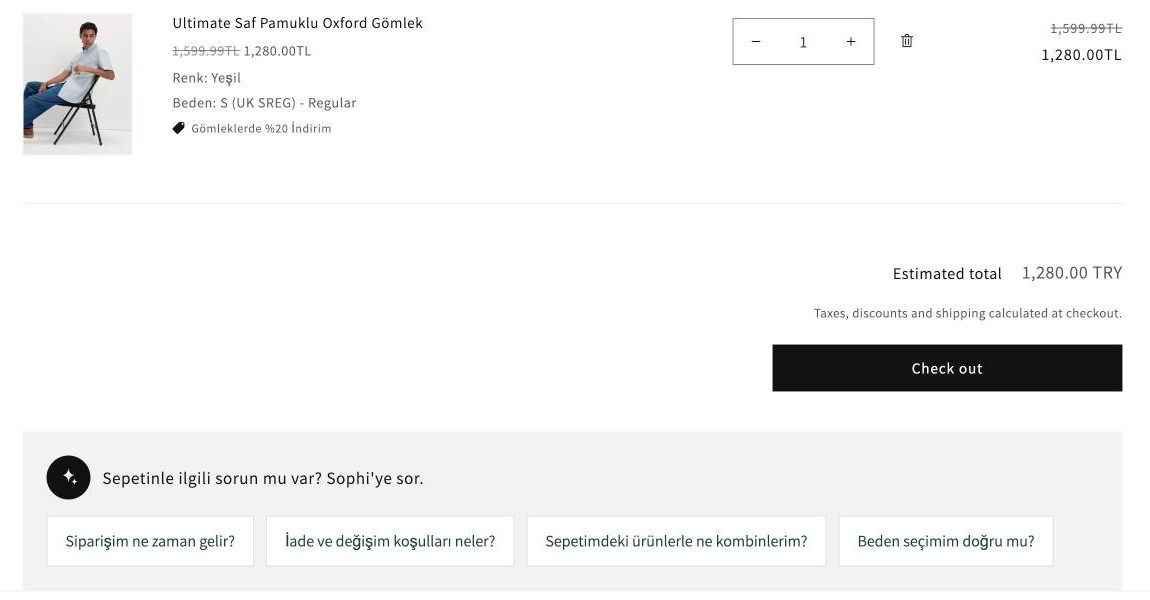
Answered against what is in the shopper's cart: Sophi sees the cart as it changes.
| Setting | Default |
|---|---|
| Title | Sepetinle ilgili sorun mu var? Sophi'ye sor. |
| Chip 1–4 | Siparişim ne zaman gelir? · İade ve değişim koşulları neler? · Sepetimdeki ürünlerle ne kombinlerim? · Beden seçimim doğru mu? |
| Background / Text | #f2f2f2 / #111111 |
Example: a skincare store
The defaults are written for a fashion store. For other catalogs, rewrite them. A natural cosmetics store might use:
| Block | Title / heading | Chips |
|---|---|---|
| Banner | Let's find the right care ritual for you | What do you recommend for dry skin? · Where should I start with hair care? · Which gift sets do you have? · Recommend a set within my budget |
| Product box | Ask our assistant about this product | How do I use this? · What's in it? · What can I use it with? · Show similar products |
| Search recovery | Didn't find it? Our assistant will help. | Recommend something for me · Show your ready-made sets · Find products within my budget |
| Cart | A question about your cart? Ask our assistant. | How do I use the products in my cart? · What goes well with my cart? · Is there a set with these products? |
6. Add a menu link (optional)
To put the assistant in your navigation, go to Content → Menus, open your main
menu, Add menu item, and link it to the chat page. With Chat display set to
Side panel, link the item to #sophi instead: any link ending in #sophi
opens the panel.
For theme developers
You don't need code for any of the above. If you want your own entry points, the app's script gives your theme these hooks:
<!-- Any element with data-sophi-prompt opens the chat and asks its text -->
<button type="button" data-sophi-prompt="Which size should I buy?">Ask about sizing</button>

<!-- Any link ending in #sophi opens the assistant -->
<a href="#sophi">Chat with our assistant</a>
// window.Sophi
Sophi.open(); // open the assistant (Full page: goes to the chat page)
Sophi.close(); // close it (side panel)Prefer data-sophi-prompt for your own questions: it works in both display modes.
Sophi.ready() resolves to the chat widget (with the
Web SDK methods) only where the chat
is mounted — on the chat page in Full page mode, on any page in Side panel
mode — and to null elsewhere or when consent or loading fails, so check the
result before you use it. In Side panel mode, calling it loads the chat, so
don't call it on page load.
Next: Match your brand.
Create and Install the App
Create the Sophi app in your Shopify organization's Dev Dashboard, deploy the Sophi app code to it, install it on your store with its six permissions, and share its credentials so Sophi can sync your catalog.
Match Your Brand
Style the Sophi Shopify blocks and chat button to match your theme with the Sophi appearance app embed — corners, chip colours, icon, banner alignment, chat-button font and custom CSS — with a live demo of every setting.